
TMview is a free trademark search tool at tmdn.org/tmview, run by the EUIPO (the European Union Intellectual Property Office) with its partner offices. It searches 143,842,303 trademarks from 81 offices in one go, and you don't need an account to use it (TMview, 4 November 2026).
That reach is also the trap. You type a name, scan 81 offices, see nothing alarming, and it feels like a global clearance. It isn't. TMview has no sound-alike search, so a name that sounds identical to yours but is spelled differently can slip straight past it. And some offices haven't sent fresh data in months. One hasn't since February 2022.
This guide covers how to run a TMview trademark search properly: which search method to pick, how territories pull in EU and international marks, how to read the results, and the five gaps you need to cover somewhere else.
What TMview Is (and What It Isn't)
TMview is one search box over the trademark registers of the TMDN (Trade Mark and Design Network), the network of national and regional offices that share data with the EUIPO. Its 81 participating offices include the EUIPO itself, national offices across the EU, and big registers well beyond the EU: the US, China, Japan, Korea, Brazil, the UK, Australia and Canada.
Two facts shape how you should use it.
It is not an official register. TMview's own footer says the tool does "not constitute official registers" and its information has no legal effect. Each office is responsible for the accuracy of its own data. TMview tells you where to look, and the office record is the one you rely on.
China dominates the numbers. China's office contributes 60,167,466 records, about 42% of everything in TMview. The US comes next at 13,937,419, then Brazil, Japan and Korea. The EUIPO's own EU trademarks (EUTMs) account for only 2,801,380.
TMview Records by Office, Top 10 (TMview, 4 Nov 2026)
So what do you do with that? Don't search "all offices" and read the result count as a measure of risk. A short or common word will return thousands of Chinese records before you see a single mark in your actual markets. Choose your territories first (Step 2 below), and the results become something you can review.
How to Search TMview Step by Step
To make this concrete, say you're clearing FYNDLY, a hypothetical name for a product-search app. It would be filed in Nice classes 9 (downloadable software) and 42 (software as a service). Nice classes are the international system for sorting goods and services into 45 categories.
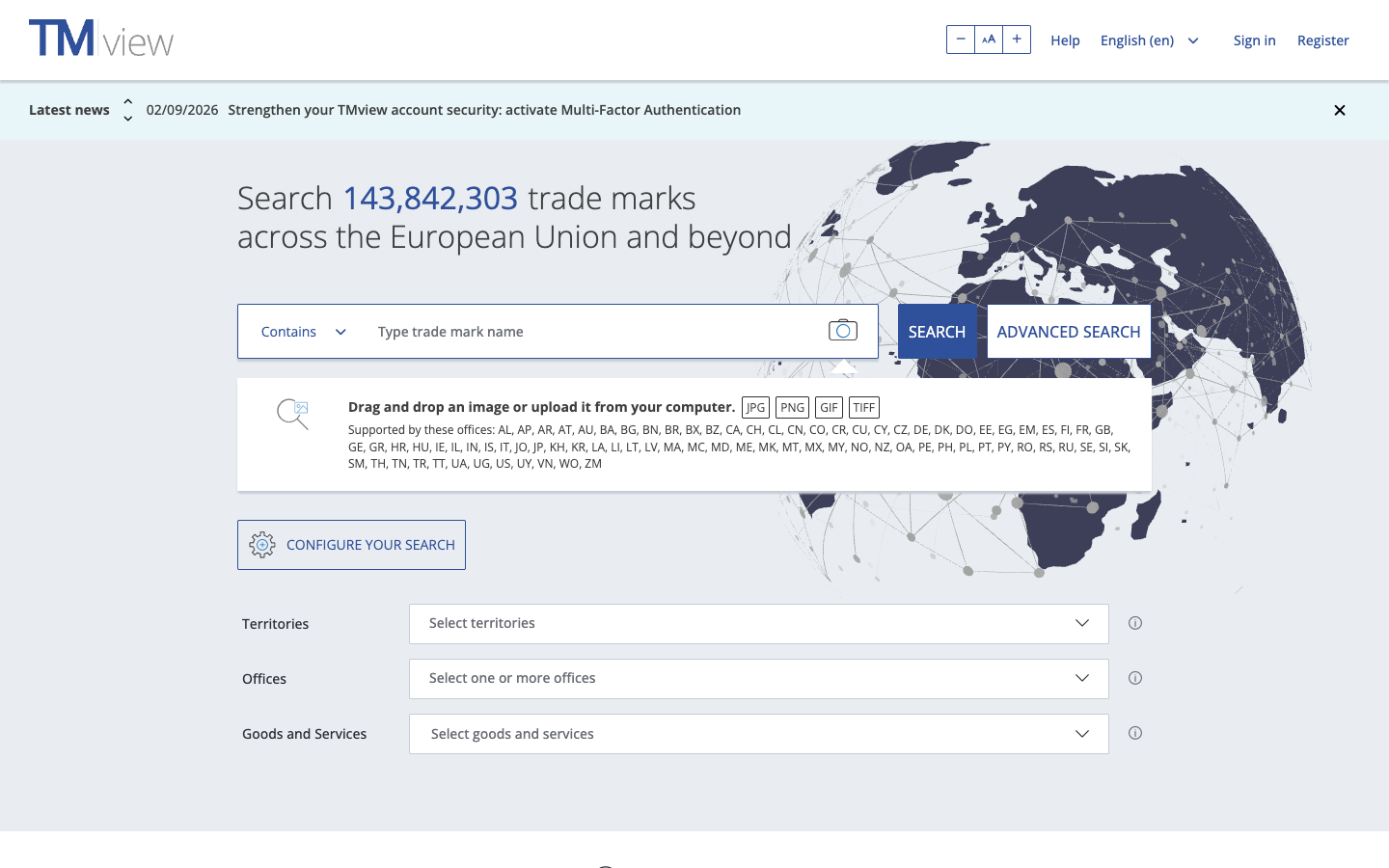
TMview home page at tmdn.org/tmview, showing the trade mark search bar, the search method selector and the live counter of 143,842,303 trade marks across the European Union and beyond
Step 1: Pick a search method
TMview offers six search methods. The one you pick decides what counts as a match.
| Method | What it matches | Use it for |
|---|---|---|
| Is | The exact name only | Confirming a specific mark exists |
| Word | Your term as a separate word anywhere in the name | Distinctive words that might sit inside longer marks |
| Contains | Your term as a character string anywhere ("EURO" finds "Europa") | Compound names and coined words |
| Begins with / Ends with | Names starting or ending with your term | Prefixes and suffixes ("FYND...", "...LY") |
| Fuzzy | Names with similar spelling, measured by edit distance | Typos and spelling variants |
TMview searches ignore case and accents, so "Fyndly" and "FYNDLY" return the same results. Contains also splits terms: "Route66" becomes "Route" and "66", which can flood your results with marks that only share the number.
For a coined word like FYNDLY, run at least three passes: Word, Contains and Fuzzy. Each one surfaces something the others miss.
Step 2: Choose territories, not just offices
TMview lets you filter by office or by territory, and the difference matters. Selecting a territory automatically selects every office whose marks can have effect there. Pick Austria and TMview selects the Austrian office, the EUIPO and WIPO.
That's how you catch two kinds of rights you'd otherwise miss:
- EU trademarks, which cover all 27 member states and live at the EUIPO, not at the national office.
- International registrations under the Madrid Protocol, which lets an owner file one international application at WIPO and designate many countries.
If you only tick "Austria" under offices, you see Austrian national marks and nothing else. For FYNDLY, you'd pick each territory you plan to sell in and let TMview add the EU and WIPO layers.
Step 3: Narrow by goods and services
A matching name only matters if it covers related goods or services. TMview lets you combine goods and services terms with AND, OR and NOT. For FYNDLY, you could filter on class 9 OR class 42, or search the goods and services text for "software" AND "search".
Keep this filter loose on the first pass. A FYNDLY-like mark in class 35 (advertising and online retail services) could still be a problem for a product-search app. Narrow later, once you've seen what's out there.
Step 4: Search the logo
If your mark has a logo, TMview gives you two ways to search it:
- Vienna codes. The international classification for figurative elements (stars, animals, letters in a circle). You can combine codes with AND, OR and NOT.
- Image search. Upload your logo, crop it to the part that matters, and TMview returns visually similar marks. Any result also has a "search similar images" option, which is useful for following a design family.
Step 5: Escape your wildcards
This one catches experienced searchers. TMview supports ? (one character) and * (zero or more), but only if you escape them with a backslash. Typed plainly, FYND* searches for a literal asterisk. Type FYND\* instead.
TMview's help also warns that combining a wildcard with a search method can change how that method behaves, so check what a wildcard search actually returned before you rely on it.
Reading TMview Results
Results are ranked by relevance, and filters on the left let you narrow by office, status, class, type and dates without starting over. Expand any row to see the expiry date and the goods and services.
The goods and services come translated. TMview uses the Harmonised Database (a shared list of pre-translated terms) first, then falls back to DeepL or Google Translate. That's fine for a first read of a Korean or Brazilian record. It's not good enough to decide whether two specifications overlap. If a mark looks close, read the original language or get it translated properly.
Three tools on the results page earn their place:
- Statistics view. Breaks your results down by status, goods and services, mark type, territory and applicant name. It's the fastest way to see whether one owner holds a cluster of similar marks.
- Compare. The scales icon puts two marks side by side, and you can export the comparison to Excel.
- Export. Results go to Word, PDF or Excel, with a choice of range and layout. Useful when a client or attorney needs to see what you found.
Then the rule that matters most: click through to the office's own record before you rely on any status or date. TMview reflects each office's last data update, which may be days or months old. The office register is the version that counts.
Where TMview Falls Short
No phonetic search
Fuzzy is the closest TMview gets to similarity, and it measures spelling, not sound. TMview's help describes it as Levenshtein, or edit distance: the number of single-letter changes it takes to turn one word into another.
Here's what that means for FYNDLY. A Fuzzy search on 4 November 2026 returned 92 results (TMview, 4 November 2026). They included:
- FINDLY, registered at the EUIPO in classes 9 and 42
- FONDLY, including a US registration in class 42
- Wyndly, fundly, FRNDLY, Kyndly, FYNLY, FYNDZY and others
- fyndl., a German application at the DPMA (Germany's patent and trademark office), filed 3 September 2026 in classes 9, 35 and 42
That last one is exactly why the search is worth running. An application filed two months ago, covering both your classes, for a name one letter shorter than yours.
Now look at what Fuzzy did. Every close single-word hit was one edit from FYNDLY. FONDLY made the list even though it sounds different.
Meanwhile Pindly, an EUIPO registration in classes 9, 35 and 39 that TMview holds (a Word search finds it), did not appear. Pindly is two edits away: F becomes P, Y becomes I.
Spellings that sound the same fare worse. PHINDLY is pronounced exactly like FYNDLY, but it's three edits away (F becomes P and H, Y becomes I). No PH- spellings came back at all. Edit distance doesn't measure sound, and in both the EU and the US, how marks sound is one of the standard factors in a likelihood-of-confusion assessment, alongside how they look and what they mean.
TMview doesn't publish a Fuzzy cutoff, so don't assume one. The practical lesson is simpler: a clean Fuzzy result tells you about spelling variants. It tells you nothing about sound-alikes. Brainstorm the phonetic spellings yourself (PH for F, I for Y, K for C, double letters) and run each as its own search, or use a tool with real phonetic matching.
Some offices are stale
Every office in TMview's participating offices list shows a "last update" date. Most are within a few days. Some are not (TMview, 4 November 2026):
- Russia: last updated 24 February 2022
- Jordan: last updated 2 July 2022
- India, Malaysia, the Philippines, Cambodia, Lao, Brunei, Tunisia, Albania and Belize: last updated in early May 2026, about six months ago
India alone has 2.4 million records in TMview. Indian applications filed since May won't show up there until the next update. If one of these markets matters to you, search that office's own register.
Some offices are missing
Several significant registers are not among the 81 participating offices: Singapore, Hong Kong, Taiwan, Indonesia, South Africa, Saudi Arabia and the UAE. A clean TMview result says nothing about any of them.
Alerts watch what you've already found
Sign in and you can set alerts on marks you've selected. They fire when an opposition period is close to ending, an expiry date nears, or the applicant, status, goods and services, expiry date or representative changes.
That's useful for tracking a mark you already know about. It is not a watch service. TMview alerts don't tell you when someone files a new mark similar to yours, which is the filing you most need to hear about while the opposition window is still open.
Other limits
- No legal effect. TMview says so itself. Confirm everything at the office.
- Machine translations. Fine for scanning, risky for comparing specifications.
- No unregistered rights. Common-law use, company names and domains don't appear. In the US, UK and many other markets, an earlier unregistered user can still have rights.
What to Use Alongside TMview
TMview works best as the first, widest pass. Then go deeper where it matters:
- Office registers. Confirm every close hit in the source register: EUIPO's eSearch plus for EU trademarks (see the European trademark search guide), the UKIPO for the UK (UK trademark search guide), the USPTO for the US, and IP Australia for Australia (Australia trademark search guide).
- WIPO Global Brand Database. Better than TMview for following an international registration across its designations. The WIPO trademark search guide walks through it.
- A phonetic search. Either your own list of sound-alike spellings, run one by one, or a tool that does it for you.
- An API. If you search in volume or build clearance into a product, Signa provides a trademark search API across 13 live offices, most synced daily (Signa data, queried 4 November 2026). That's far fewer offices than TMview's 81, though it does include Singapore, which TMview lacks. Each result is labelled with how it matched, including phonetic and lookalike matches. Monitoring for new filings is available in beta.
The full sequence looks like this:
Your Next Steps
- Open TMview and select the territories you plan to sell in, not just the offices.
- Run Word, Contains and Fuzzy searches for your name, with goods and services filters kept loose.
- List the phonetic spellings Fuzzy won't catch and search each one separately.
- Check the participating offices list for stale or missing markets, and search those registers directly.
- Click through every close hit to the office record, then take your shortlist to a trademark attorney.
For how the layers of a search fit together, read how trademark search works and the trademark clearance search guide. The free trademark search guide compares TMview with the other no-cost tools.
For programmatic multi-office search with phonetic matching, explore Signa's trademark search API.
Consult a trademark attorney for legal guidance specific to your situation. This guide explains how TMview works and where it stops, but it's not a substitute for professional legal advice.